Skip to content
iGoFlyer

Troubleshooting

Location not changing? Fix it by symptom

Find your symptom, then the cause and the fix. If the map doesn’t show your position — even after a short move — start with the 10-second reset. For jumps to another city or country, set up NextDNS first.

Jump to NextDNS setup

Start with the 10-second reset: keep Airplane Mode on and cellular data off, keep Bluetooth on, turn Wi-Fi and Location Services off, wait 10 seconds, turn them back on and reopen the game. It fixes most cases, short moves included. If you fly to another city or country and keep getting pulled back, the iPhone is asking Apple where it is using nearby Wi-Fi — block Apple’s location servers with NextDNS, then do the reset again.

If the map doesn’t show your position

This works for short moves too, even a few hundred metres. It’s the first thing to try, and the last step after setting up NextDNS.

  1. 1Make sure Airplane Mode stays on and the iPhone’s cellular data is off.
  2. 2Keep Bluetooth on, so the iPhone stays connected to iGoFlyer.
  3. 3Turn off Wi-Fi and Location Services on the iPhone (Settings › Privacy & Security › Location Services).
  4. 4Wait 10 seconds, then turn Wi-Fi and Location Services back on.

Then fully close Pokémon GO and open it again — your avatar should now be at the new spot.

The reset on an iPhone (23 s)

Location doesn’t change at all

Why

The iPhone isn’t receiving iGoFlyer’s location: it isn’t connected, it’s still verifying, or another tool is supplying the location.

Fix

  1. 1Check that this iPhone shows Connected in iGoFlyer and the map says it’s sending location. If not, go back to Quick start and pair again.
  2. 2Do the 10-second reset above: Airplane Mode on, cellular off, Bluetooth on; Wi-Fi and Location Services off → wait 10 s → back on.
  3. 3Fully close Pokémon GO and open it again. After a long jump, give it 5–10 seconds to land.
  4. 4Don’t use another location tool or a real GO Plus on the same iPhone at the same time.
  5. 5Jumped to another city or country? Set up NextDNS (below), then do the reset again.
If the map doesn’t show your positionQuick start

Flew there, then snapped back

Why

The iPhone uses nearby Wi-Fi and cell towers to ask Apple’s location server (gs-loc.apple.com) where it is, then overrides the Bluetooth location with the real one.

Fix

  1. 1Set up NextDNS with the 5 steps below and turn it on while you play.
  2. 2Settings › Privacy & Security › Location Services › System Services: turn off Networking & Wireless.
  3. 3Then do the 10-second reset (Wi-Fi and Location Services off → wait 10 s → back on) and reopen the game.
If the map doesn’t show your positionNextDNS setup: 6 steps for long-distance jumps

Jumping back and forth

Why

Another location source is fighting the Bluetooth one. Most often it’s a map app (Google Maps and the like) with “Always” location access — they run their own network positioning through their own servers, which NextDNS can’t block.

Fix

  1. 1Settings › Privacy & Security › Location Services: set every map app to “While Using the App” or “Never”.
  2. 2Turn on Airplane Mode to cut cellular (and cell-tower positioning), then turn Wi-Fi and Bluetooth back on by hand. The game uses Wi-Fi for the internet; iGoFlyer uses Bluetooth.
  3. 3Make sure NextDNS is active on this Wi-Fi (see step 4).
NextDNS setup: 6 steps for long-distance jumps

Stuck after a long jump, but walking works

Why

iOS treats a sudden jump of hundreds of km as an outlier and drops it, while it accepts a steady stream of small steps.

Fix

  1. 1Wait 5–10 seconds after each teleport before the next one — don’t click every few seconds.
  2. 2Still stuck? Fully close and reopen the game, or disconnect this iPhone in iGoFlyer and connect again.
  3. 3If that doesn’t help, another location source is probably pulling you back — work through “Snaps back” and “Jumping”.

Stops updating when the phone sits still

Why

After about 2 minutes lying flat, iOS decides you’re not moving and pauses location to save battery.

Fix

  1. 1Pick the phone up or wake the screen — location comes right back.
  2. 2When playing hands-free, keep moving with the joystick or a route so the location keeps updating.

NextDNS setup: 6 steps for long-distance jumps

NextDNS is an encrypted DNS service that can block specific domains. The free plan is enough, and everything is done in its iPhone app. While you play, use the full list — it cuts Apple off completely, which is the most reliable. Switch it off when you’re done.

  1. 1

    Install NextDNS and sign in

    Download NextDNS from the App Store, open it and create a free account (or sign in). A profile is created for you automatically.

    Get NextDNS on the App Store
  2. 2

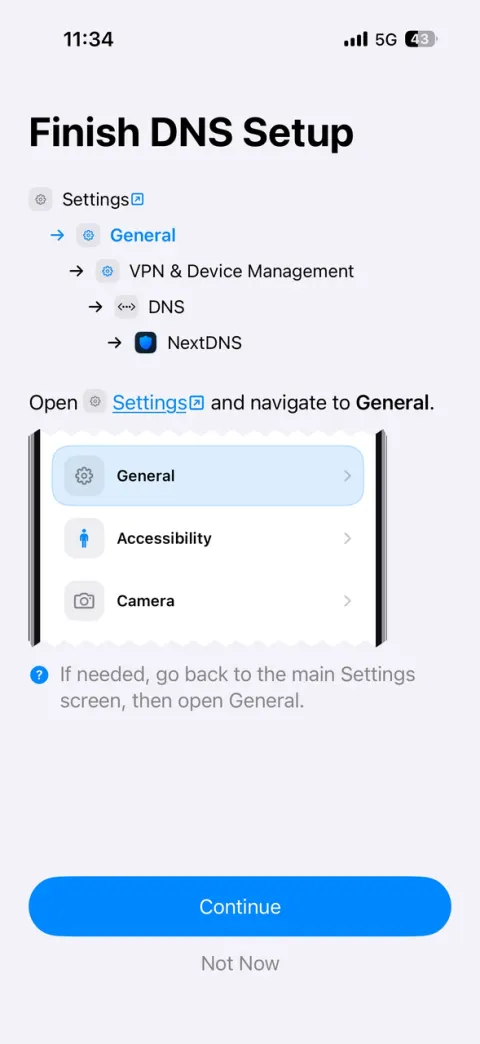
    Turn it on in iPhone Settings

    Open Settings › General › VPN & Device Management › DNS and select NextDNS — the app’s “Finish DNS Setup” screen walks you through it. Back in the app, the switch should be on.

    Turn it on in iPhone Settings
  3. 3

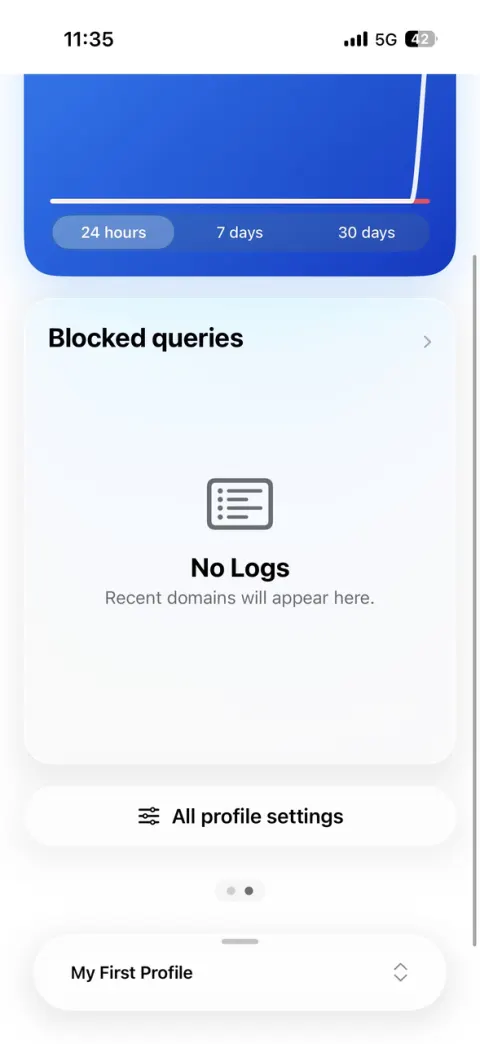
    Open “All profile settings”

    In the NextDNS app, swipe left on the home screen, scroll down and tap “All profile settings”.

    Open “All profile settings”
  4. 4

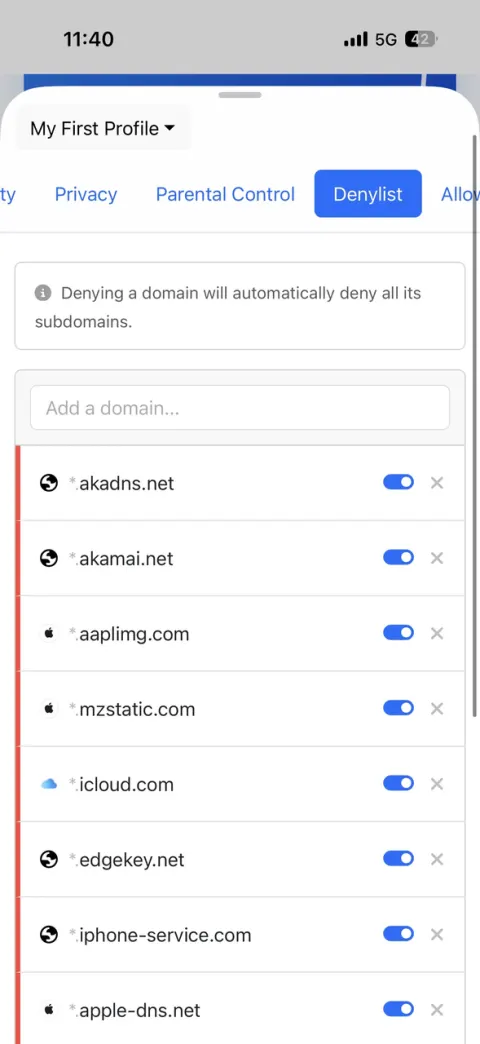
    Add the denylist

    Open the “Denylist” tab and add each domain below (a domain also blocks all its subdomains). Use the full list while playing; the light list keeps App Store and iCloud working.

    Add the denylist
    Full list · recommended while playing · 11
    DomainWhat it is
    gs-loc.apple.com

    Apple Wi-Fi / cell-tower positioning (the key one)

    apple.com

    All Apple services, location included

    akadns.net

    DNS aliases Apple’s services (including location) resolve through

    akamai.net

    Akamai CDN used by Apple (also used by many other sites)

    edgekey.net

    Akamai edge network used by some Apple services

    apple-dns.net

    Apple’s DNS load balancing

    aaplimg.com

    Apple image and asset CDN

    mzstatic.com

    App Store and iTunes assets

    icloud.com

    iCloud

    iphone-service.com

    iPhone activation and device services

    bluedot.is.autonavi.com

    The server Apple positioning actually uses in mainland China

    While it’s on, the App Store, iCloud, Apple ID sign-in, notifications and iOS updates won’t work, and some other apps and sites that use the Akamai network may not load. Switch NextDNS off in its app when you finish playing and everything comes back. If you sign in to Pokémon GO with Apple, sign in first, then turn it on.

    Light list · only Apple’s location servers

    App Store, iCloud and notifications keep working. It blocks Apple’s location servers, but on some networks it may not stop every pull-back — switch to the full list if it happens.

    Light list · only Apple’s location servers · 6
    DomainWhat it is
    gs-loc.apple.com

    Apple Wi-Fi / cell-tower positioning (the key one)

    gs-loc-cn.apple.com

    Apple positioning (mainland China)

    bluedot.is.autonavi.com

    The server Apple positioning actually uses in mainland China

    gs-loc.ls-apple.com.akadns.net

    Alias of the domains above — add it to be safe

    gs-loc-new.ls-apple.com.akadns.net

    Alias of the domains above — add it to be safe

    gs-loc-cn.ls-apple.com.akadns.net

    Alias of the domains above — add it to be safe

    Full or light — which should I use?

    The iPhone asks Apple where it is using nearby Wi-Fi and cell towers, and those requests can go through Apple’s own domains or through the Akamai CDN Apple uses. The full list blocks all of those paths, so nothing can overwrite the Bluetooth location — but everything else from Apple stops too. The light list blocks only Apple’s location servers, so the rest of the phone works normally. Gaming: full. Everyday: light or off.

    Never block *.nextdns.io — NextDNS would stop working. With the light list, also leave *.ls.apple.com alone (Apple Maps tiles and search, not location).

  5. 5

    Check it’s working

    Open test.nextdns.io in Safari. It’s working only if you see "status": "ok". Check again on every new Wi-Fi: some networks can’t reach NextDNS and the iPhone silently falls back to the router’s DNS — as if it were off.

    Open the test page

    The Logs page on the NextDNS website shows which domains were blocked, so you can confirm gs-loc.apple.com is being stopped.

  6. 6

    Do the 10-second reset

    With NextDNS on: Airplane Mode on and cellular off, Bluetooth on; Wi-Fi and Location Services off → wait 10 s → back on. Then fully close Pokémon GO and open it again.

    If the map doesn’t show your position

Most reliable setup — checklist

Run through it before flying to another city or country.

  • NextDNS is on and test.nextdns.io says ok
  • Networking & Wireless is off in System Services
  • Map apps are set to “While Using the App” or “Never”
  • Airplane Mode cuts cellular; Wi-Fi and Bluetooth turned back on
  • No other location tool or real GO Plus connected
  • Wait 5–10 s after a teleport; respect the cooldown before catching

What NextDNS can’t fix

  • Map apps’ own network positioning — they connect to their servers by IP, so only location permissions can stop them.
  • Apps that guess your city from your public IP — those need a VPN that exits in the target region.

Common questions

Do I have to set up NextDNS to change my location?

Not always. Short moves within the same city usually work without it — if the map doesn’t show your position, do the 10-second reset first. You need NextDNS when you fly to another city or country and keep getting pulled back.

Will blocking these domains break anything else on my iPhone?

With the full list, the App Store, iCloud, Apple ID sign-in, notifications and updates stop while NextDNS is on, and some apps on the Akamai network may not load — turn it off after playing. With the light list, all of those keep working; the only trade-off is slower or less accurate location in Apple Maps indoors.

Why does switching away from the game send me back to my real location?

The iPhone looked up your real location from Apple using Wi-Fi and cell towers and overrode the Bluetooth location. Block gs-loc.apple.com and the other location domains with NextDNS, and turn off Networking & Wireless in System Services.

Still not working?

Post in our Discord: say which symptom you see and whether you use Mac, Windows or Android, and attach the logs exported from the app. We’ll take a look.